.svg?fit=max&auto=format&n=FWsgW4ILq9VtosoU&q=85&s=790189ca0c7e2333bfc55e5a4c40bdc4)

LET’S START! SET YOUR PARAMETERS
The first time you install the EA there will be no previous settings and all the fields of the tabs will be empty. You can just set the risk parameters as desired and press the update button when you are done. There is no room for misunderstanding about the parameters in use since they are visible in the interactive GUI interface.- Load the EAs with the interactive GUI.
- Set the risk parameters on each tab of the interactive GUI.
- Update the parameters by clicking on the Update Parameters button.
- Activate EmoGuardian by switching the On / Off button on the top right corner.
Initial input variables
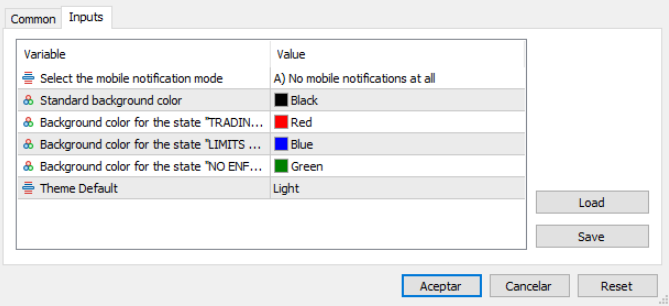
The input section is only meant to setup the mobile notification settings and the background notification system.Mobile Phone Notification Options
The notification options allow you to decide which notifications to receive on your mobile phone. Any operation taken by EmoGuardian to reduce size, flatten trades, closing trades partially etc. is reported on the Light GUI, however it might be annoying to receive mobile notifications for every operation. Thus, you can choose these three options:- Not receiving notifications at all.
- Receiving only Main notifications (these are notifications about reaching any level of min/max equity or min/max loss that appear on the “Daily Limits” tab or in the “Time Ranges” tab.
- Receiving all notifications.
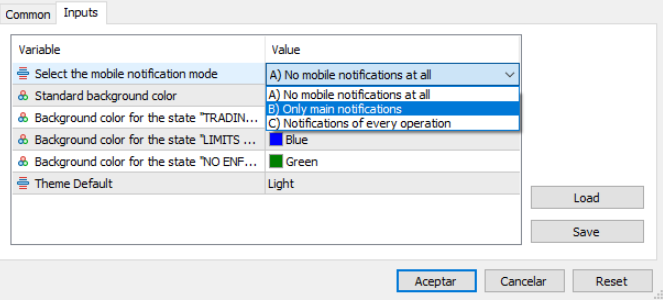
Standard background color
The color parameters specified here will only take effect when the ‘Use background colors to signal trading state’ option is selected in the interactive GUI. When enabled, the chart background will visually represent the current trading situation using distinct colors. If you use the default parameters, the background will turn: Red> means no trade is allowed. Blue> if there are any limitations. Green> means there is no active limitation in place.